Version a prompt and ship it to production
What you'll build: a support-reply prompt with two committed versions,
production pointing at the version you choose, and app code that renders it —
so you can change the live prompt later without redeploying.
1. Create the prompt
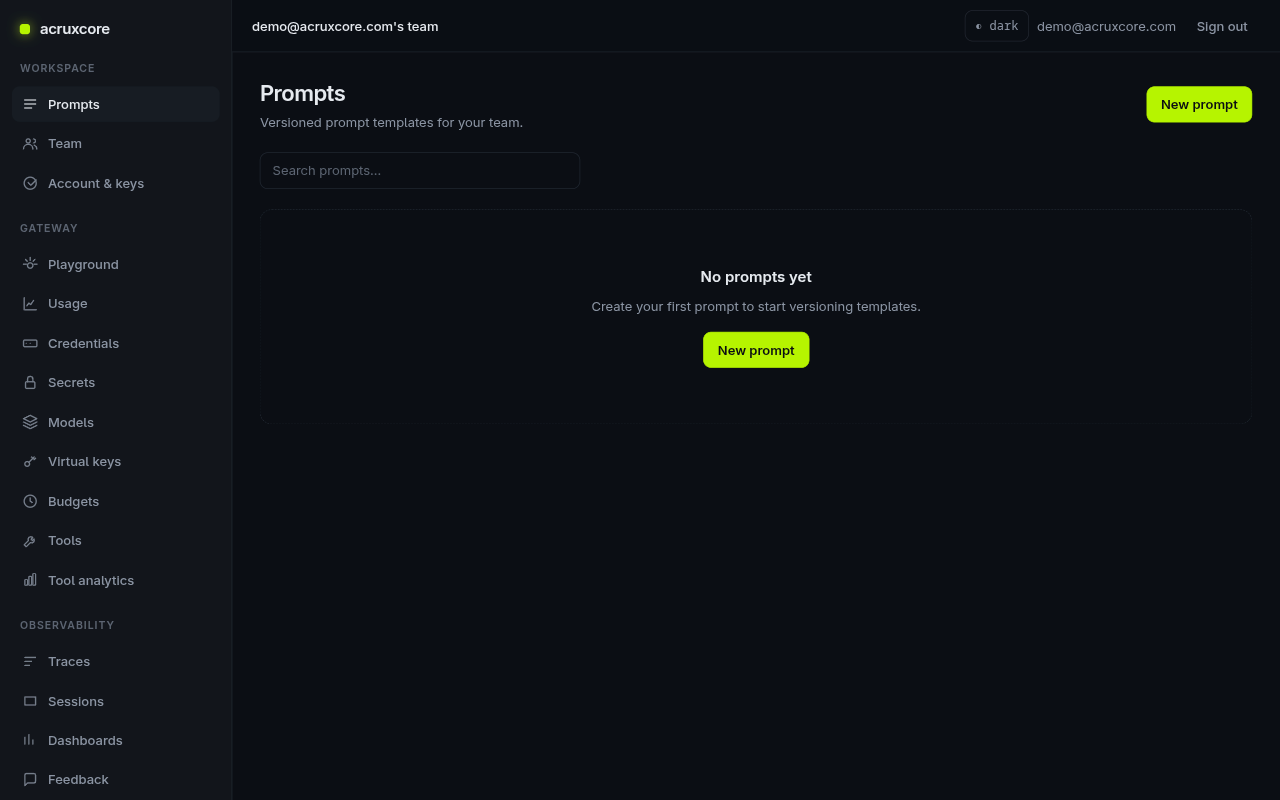
On Prompts, click New prompt. A prompt is just a named container for versioned templates.
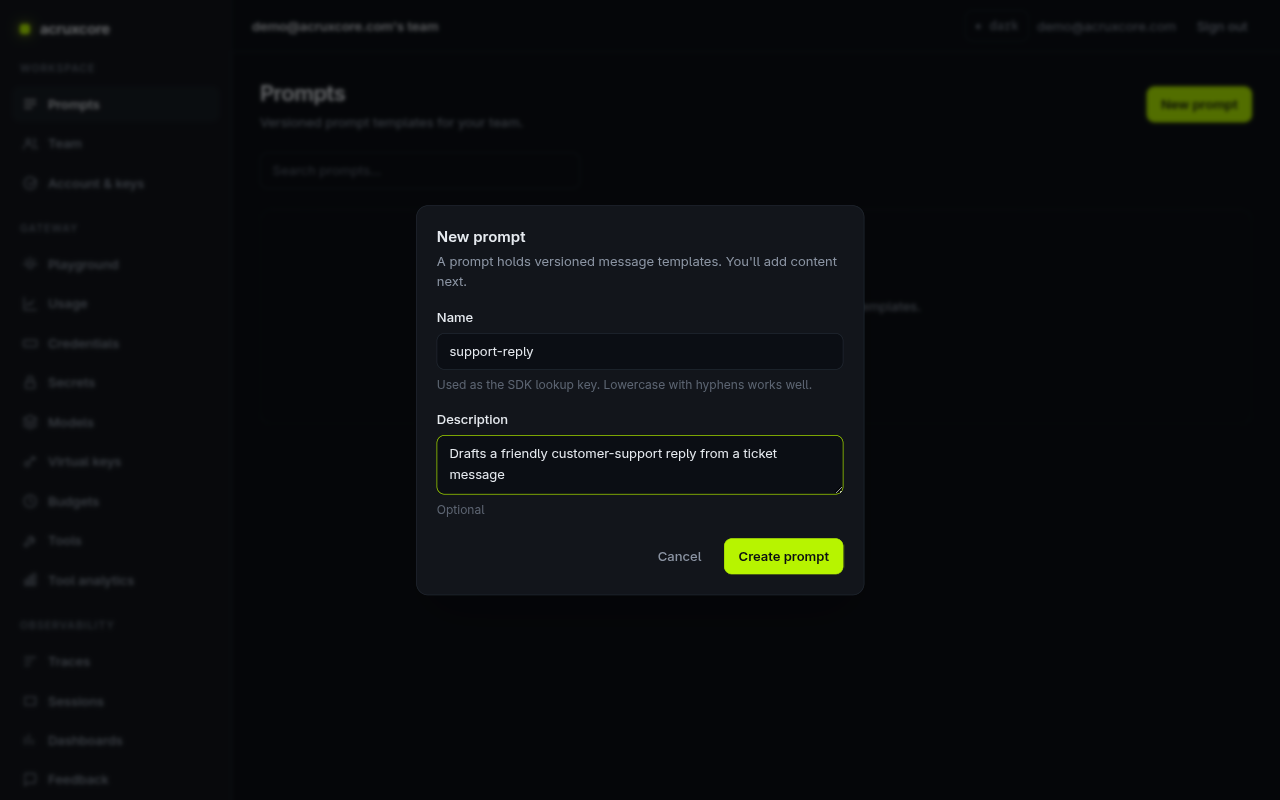
Name it support-reply. The name is your SDK lookup key, so lowercase-with-hyphens
works well.
2. Author and commit v1
In the Editor, add a system message and a user message. Use
{{ variables }} where runtime input goes:
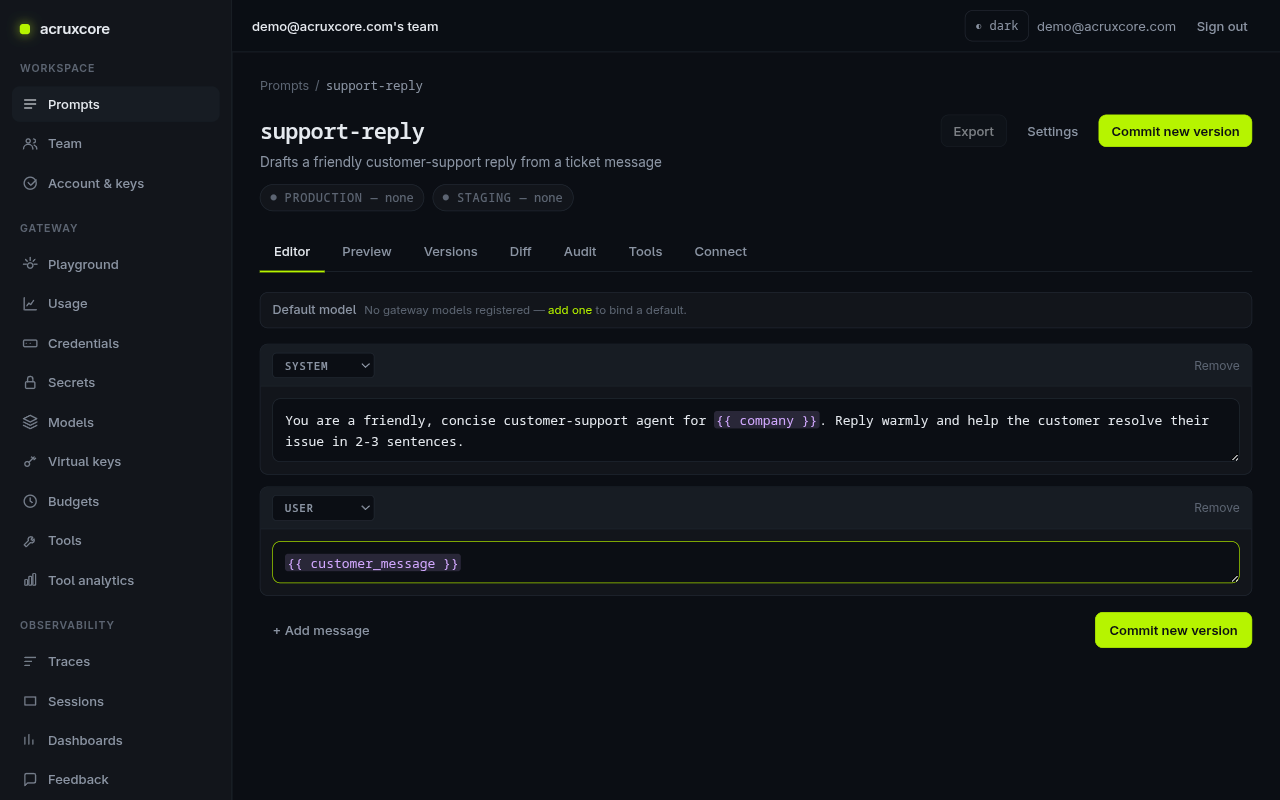
system: You are a friendly, concise customer-support agent for {{ company }}.
        Reply warmly and help the customer resolve their issue in 2-3 sentences.
user:   {{ customer_message }}
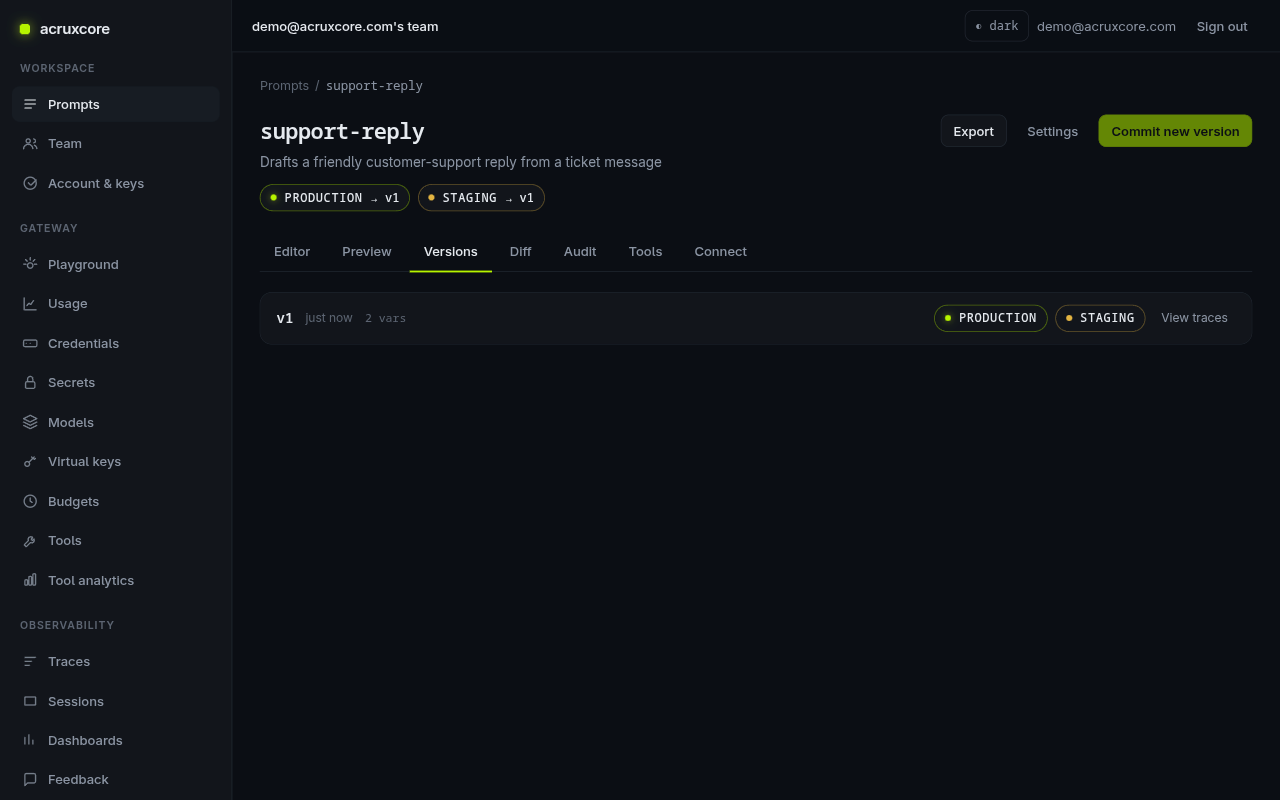
Click Commit new version. Versions are immutable — this is v1. The first
commit also auto-creates the production and staging aliases, both pointing at
v1.
You can also create a prompt and commit a version over the API:
- curl
- Python (requests)
# Create the prompt
curl -X POST "$ACRUXCORE_BASE_URL/prompts" \
  -H "Authorization: Bearer $ACRUXCORE_API_KEY" \
  -H "Content-Type: application/json" \
  -d '{"name":"support-reply","description":"Drafts a friendly support reply"}'

# Commit a version
curl -X POST "$ACRUXCORE_BASE_URL/prompts/support-reply/versions" \
  -H "Authorization: Bearer $ACRUXCORE_API_KEY" \
  -H "Content-Type: application/json" \
  -d '{
    "messages": [
      {"role":"system","content":"You are a friendly, concise customer-support agent for {{ company }}. Reply warmly and help the customer resolve their issue in 2-3 sentences."},
      {"role":"user","content":"{{ customer_message }}"}
    ]
  }'
import os, requests

base, key = os.environ["ACRUXCORE_BASE_URL"], os.environ["ACRUXCORE_API_KEY"]
h = {"Authorization": f"Bearer {key}"}

requests.post(f"{base}/prompts", headers=h,
              json={"name": "support-reply", "description": "Drafts a friendly support reply"})

requests.post(f"{base}/prompts/support-reply/versions", headers=h, json={
    "messages": [
        {"role": "system", "content": "You are a friendly, concise customer-support agent for {{ company }}. Reply warmly and help the customer resolve their issue in 2-3 sentences."},
        {"role": "user", "content": "{{ customer_message }}"},
    ],
})
3. Commit v2
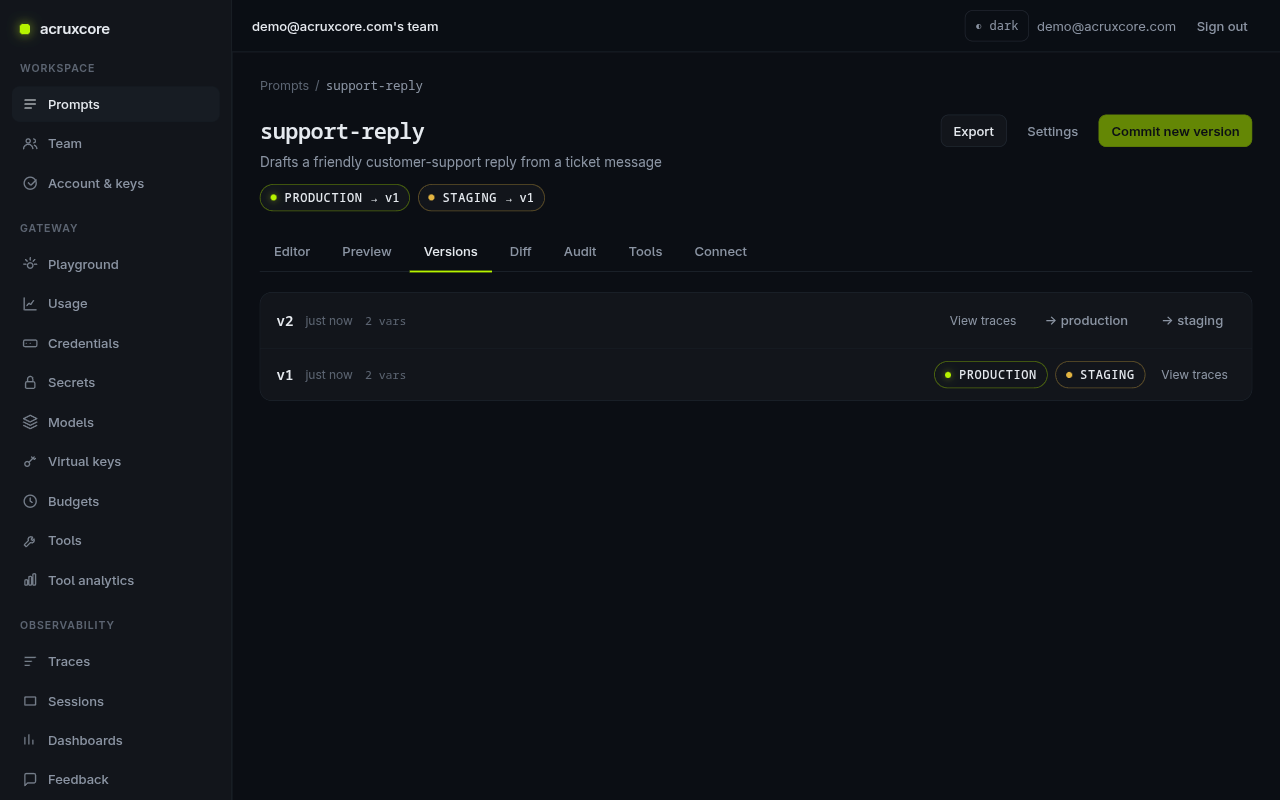
Edit the system message — say, add "Always end with a clear next step." — and
Commit new version again. You now have v1 and v2. Note that committing v2 did
not move production: both aliases still point at v1. A commit never silently
changes what's live.
4. Promote v2 to production
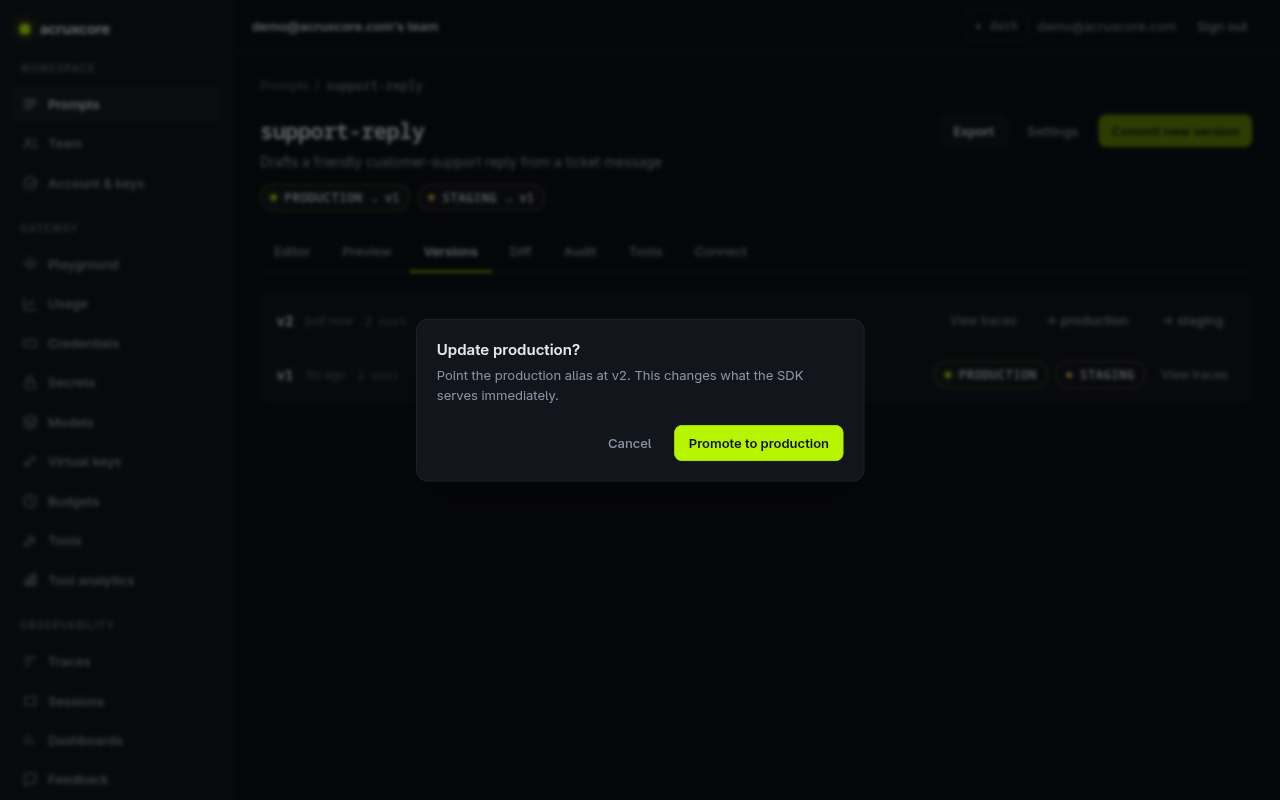
On v2, click → production. Acrux Core confirms the change, because it takes
effect immediately for anything reading the production alias.
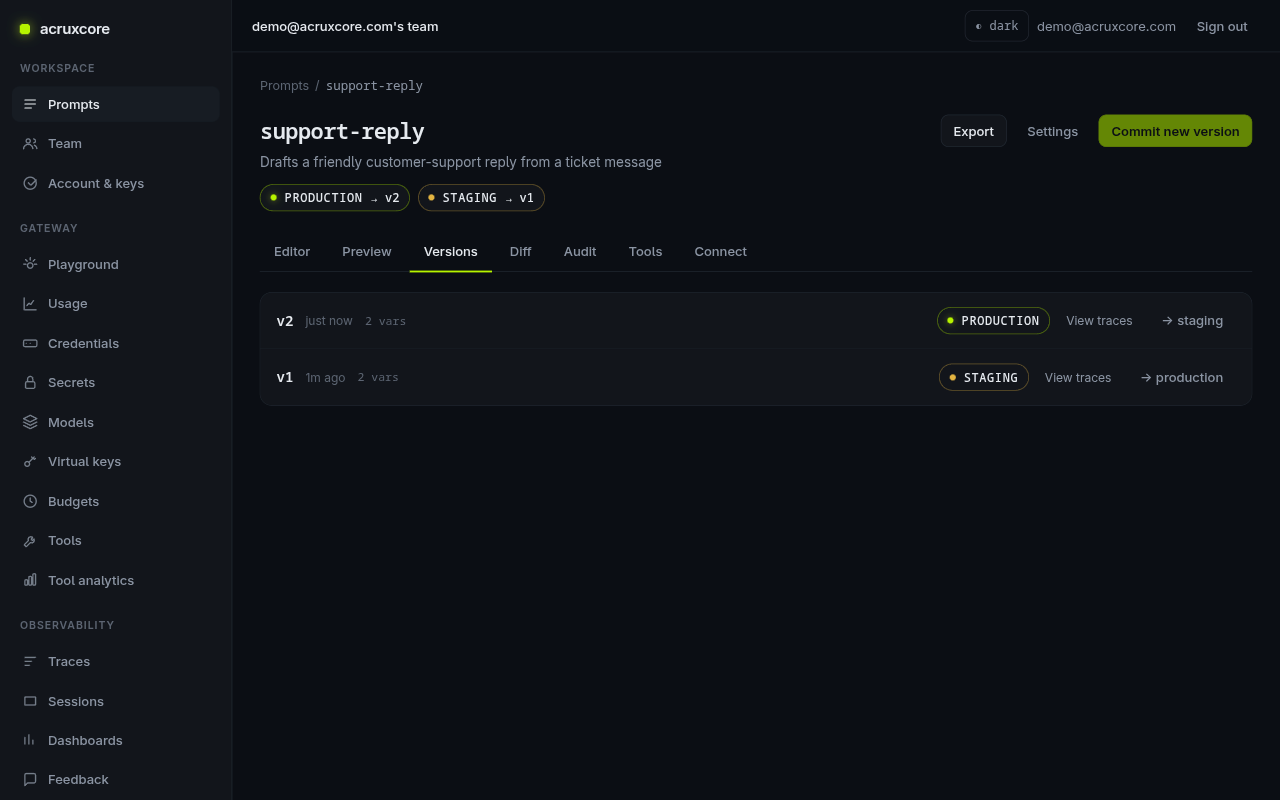
Confirm. production now points at v2 while staging stays on v1 — so you can
keep testing v1 (or a future v3) on staging without touching production.
Promotion is also one API call:
- curl
- Python (requests)
curl -X POST "$ACRUXCORE_BASE_URL/prompts/support-reply/aliases/production/promote" \
  -H "Authorization: Bearer $ACRUXCORE_API_KEY" \
  -H "Content-Type: application/json" \
  -d '{"version_number": 2}'
requests.post(
    f"{base}/prompts/support-reply/aliases/production/promote",
    headers=h, json={"version_number": 2},
)
5. Render it from your app
Your app asks for the prompt by name and alias and gets back rendered messages.
Because it reads production, promoting a new version changes the output with no
code change.
- curl
- Node (SDK)
- Python (requests)
curl -X POST "$ACRUXCORE_BASE_URL/prompts/support-reply/production/render" \
  -H "Authorization: Bearer $ACRUXCORE_API_KEY" \
  -H "Content-Type: application/json" \
  -d '{"variables":{"company":"Acme","customer_message":"Where is my order #123?"}}'
{
  "messages": [
    {"role":"system","content":"You are a friendly, concise customer-support agent for Acme. ... Always end with a clear next step."},
    {"role":"user","content":"Where is my order #123?"}
  ],
  "tools": []
}
import AcruxCore from '@acruxcoreai/sdk';

const hub = new AcruxCore();

const { messages, tools } = await hub.renderPrompt('support-reply', 'production', {
  company: 'Acme',
  customer_message: 'Where is my order #123?',
});
// `messages` is ready to send to a model; `tools` is [] until you attach some.
resp = requests.post(
    f"{base}/prompts/support-reply/production/render",
    headers=h,
    json={"variables": {"company": "Acme", "customer_message": "Where is my order #123?"}},
)
messages = resp.json()["messages"]
What's next
- Route the rendered prompt through the gateway to actually call a model.
- Attach a tool so the model can take actions.
- API details: see Prompts, Versions, and Aliases in the API Reference.