Build a tool-calling agent in the dashboard (no code)
What you'll build: a movie assistant that answers questions using live data from The Movie Database (TMDB). You give it two HTTP tools and a model, ask it a question, and the platform calls TMDB for you and feeds the results back to the model — all assembled by clicking through the dashboard, with no code to write or run.
A tool is a function you let the model call when it needs something it can't answer on its own — here, real movie data. Acrux Core has two kinds of tool executor. A client tool is one your app runs (see Store prompts and tools via the API for that path). An HTTP tool is different: you describe an HTTP request once — the URL, where the model's arguments go, and where your API key goes — and the gateway makes that request itself whenever the model calls the tool. Nothing runs on your side. This guide uses the HTTP kind end to end.
Because TMDB needs an API key, you'll first store that key as a secret — an encrypted value your tools can reference by name without ever exposing it.
Create a free account at themoviedb.org/signup, then open Settings → API and request a Developer key. Copy the API Key (v3 auth) — the 32-character one. No credit card required.
1. Store your TMDB key as a secret
Open Gateway → Secrets in the sidebar and click New secret. Secret names are uppercase (letters, digits, underscores). Name it TMDB_KEY and paste your TMDB key as the value. The value box is masked and, once saved, the value can never be read back — tools reference it by name only.
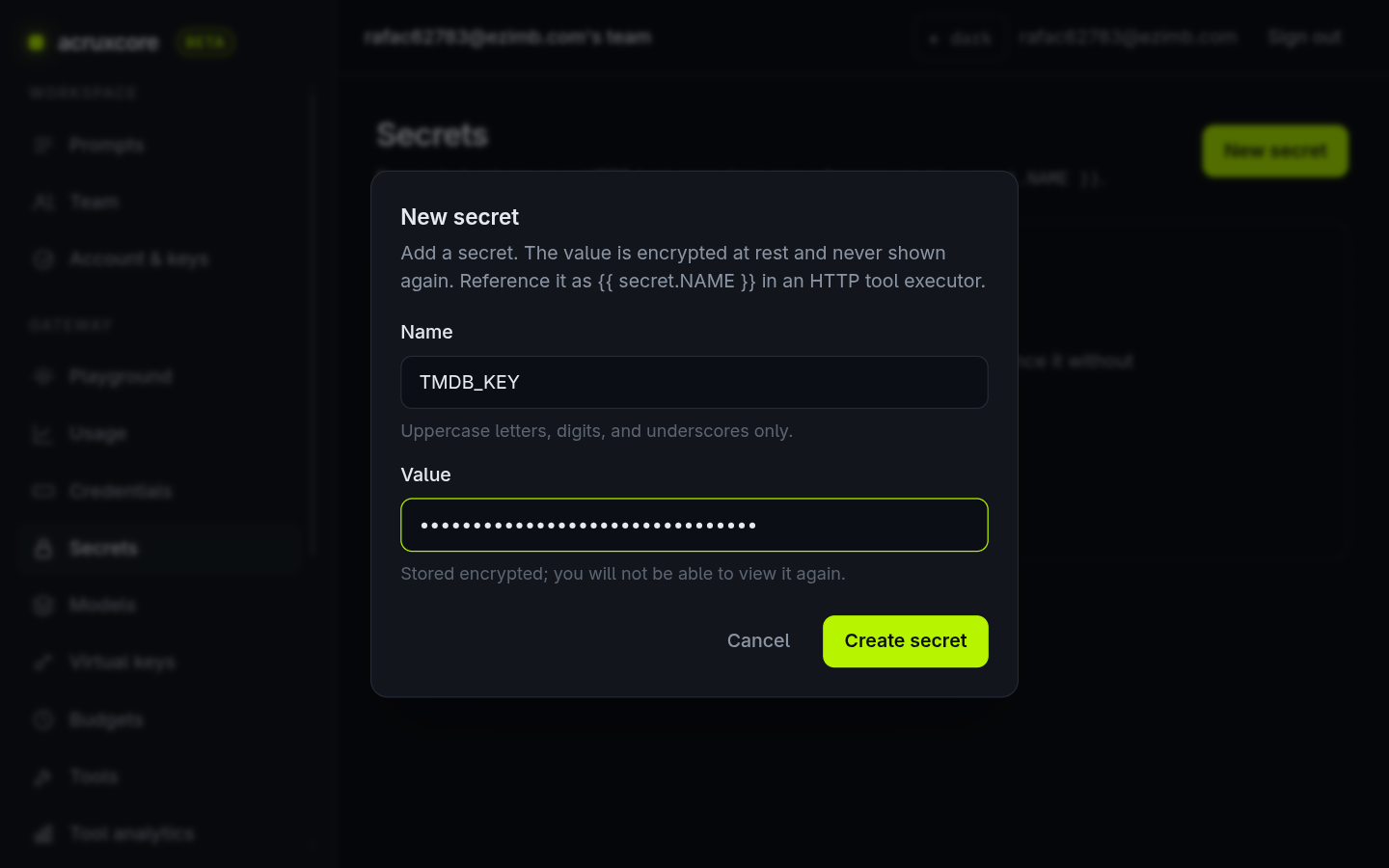
Click Create secret. You'll refer to it inside a tool as {{secret.TMDB_KEY}}.
2. Create the first tool — search_movies
This tool takes a movie title and returns matching movies. Open Gateway → Tools, click New tool, and give it a name and description. The description is what the model reads to decide when to call the tool, so make it clear.
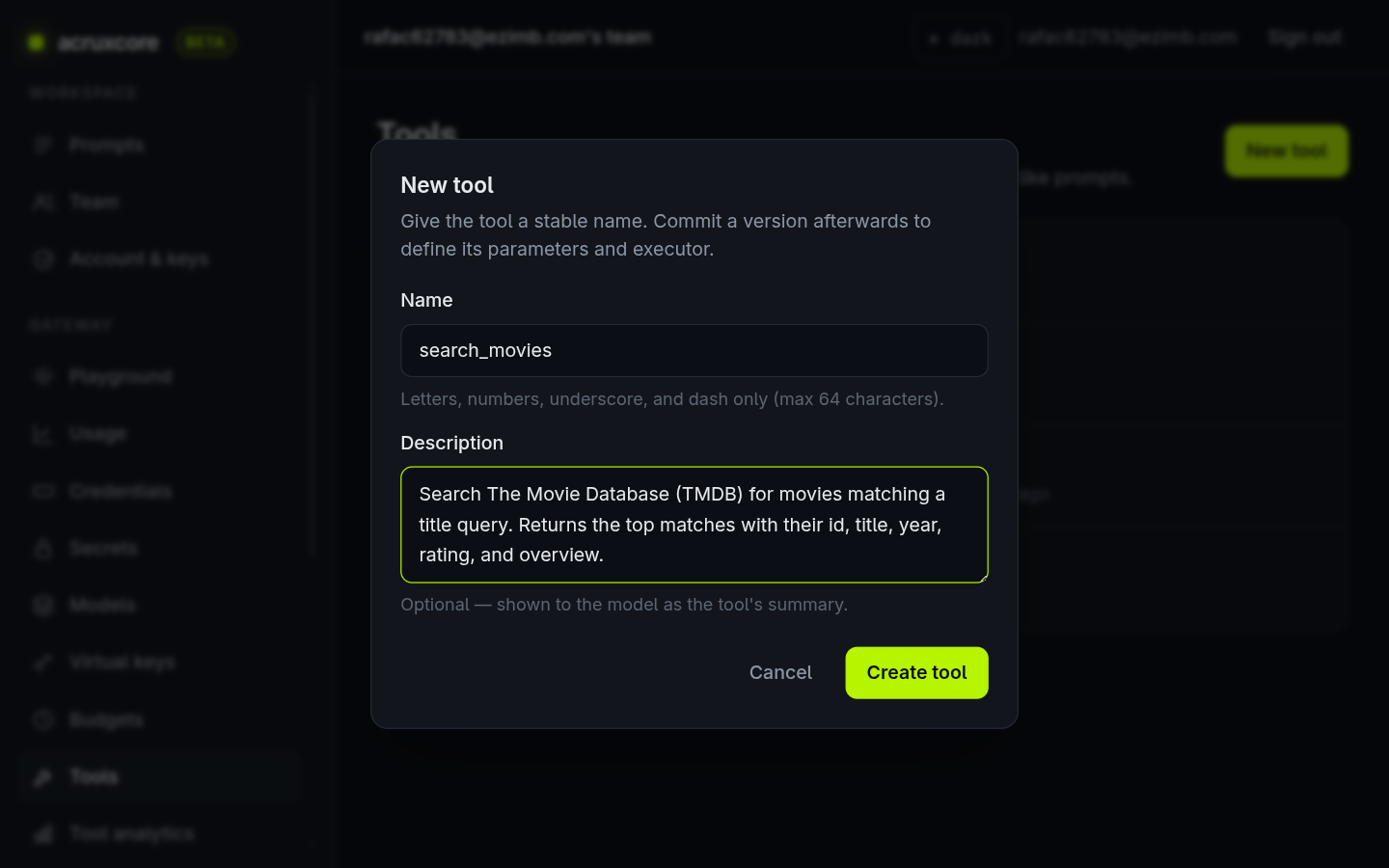
A tool is versioned like a prompt: the shell you just made holds no logic yet. Click New version to define its parameters and its executor.
- Parameters are the arguments the model fills in. Add one row:
query, typestring, marked required, described as the movie title to search for. - Executor: choose HTTP — the gateway calls a URL. Set the method to
GETand the URL tohttps://api.themoviedb.org/3/search/movie. - Query params: add two rows. TMDB wants the search text as
queryand the key asapi_key, both in the query string:query={{arg.query}}— the{{arg.NAME}}placeholder is replaced with whatever the model passes as that argument.api_key={{secret.TMDB_KEY}}— resolved from your secret at call time. Secrets are injected into headers and query params only, never into the URL, so they stay out of request logs.
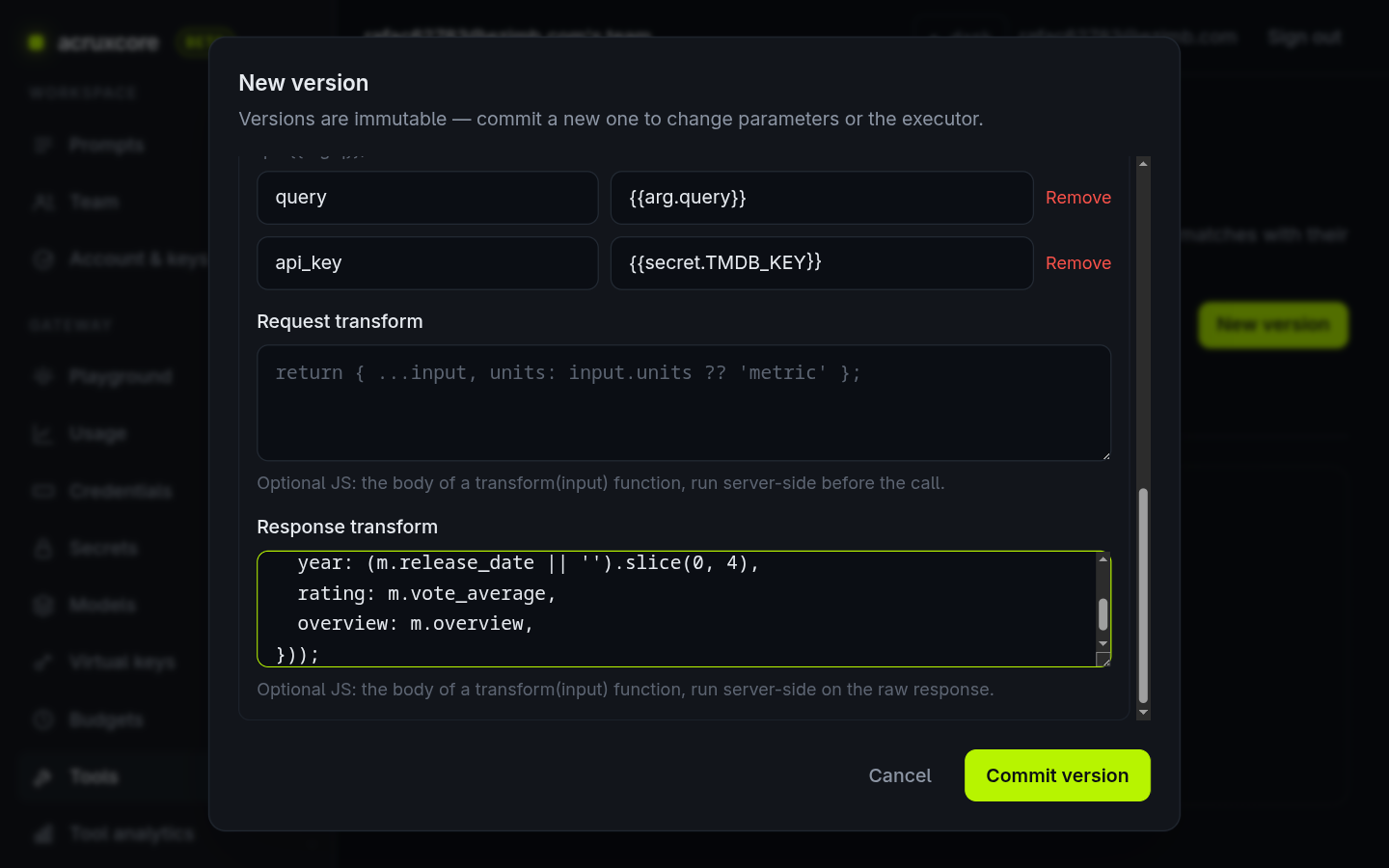
TMDB returns a large payload. A response transform trims it to just what the model needs — less noise, fewer tokens. It's the body of a function transform(input) that runs server-side in a sandbox; input.body is the parsed JSON response:
function transform(input) {
  return (input.body.results || []).slice(0, 3).map((m) => ({
    id: m.id,
    title: m.title,
    year: (m.release_date || '').slice(0, 4),
    rating: m.vote_average,
    overview: m.overview,
  }));
}
Write the complete function transform(input) { ... }, including the function line — not just the return. (The in-form placeholder text is only a hint.) The sandbox has no network or filesystem access; it just reshapes JSON.
Click Commit version. The first version automatically gets production and staging aliases.
3. Create the second tool — get_movie_details
search_movies returns an id; this tool takes that id and returns the full record. Create another tool named get_movie_details, then commit an HTTP version. This one shows a path argument.
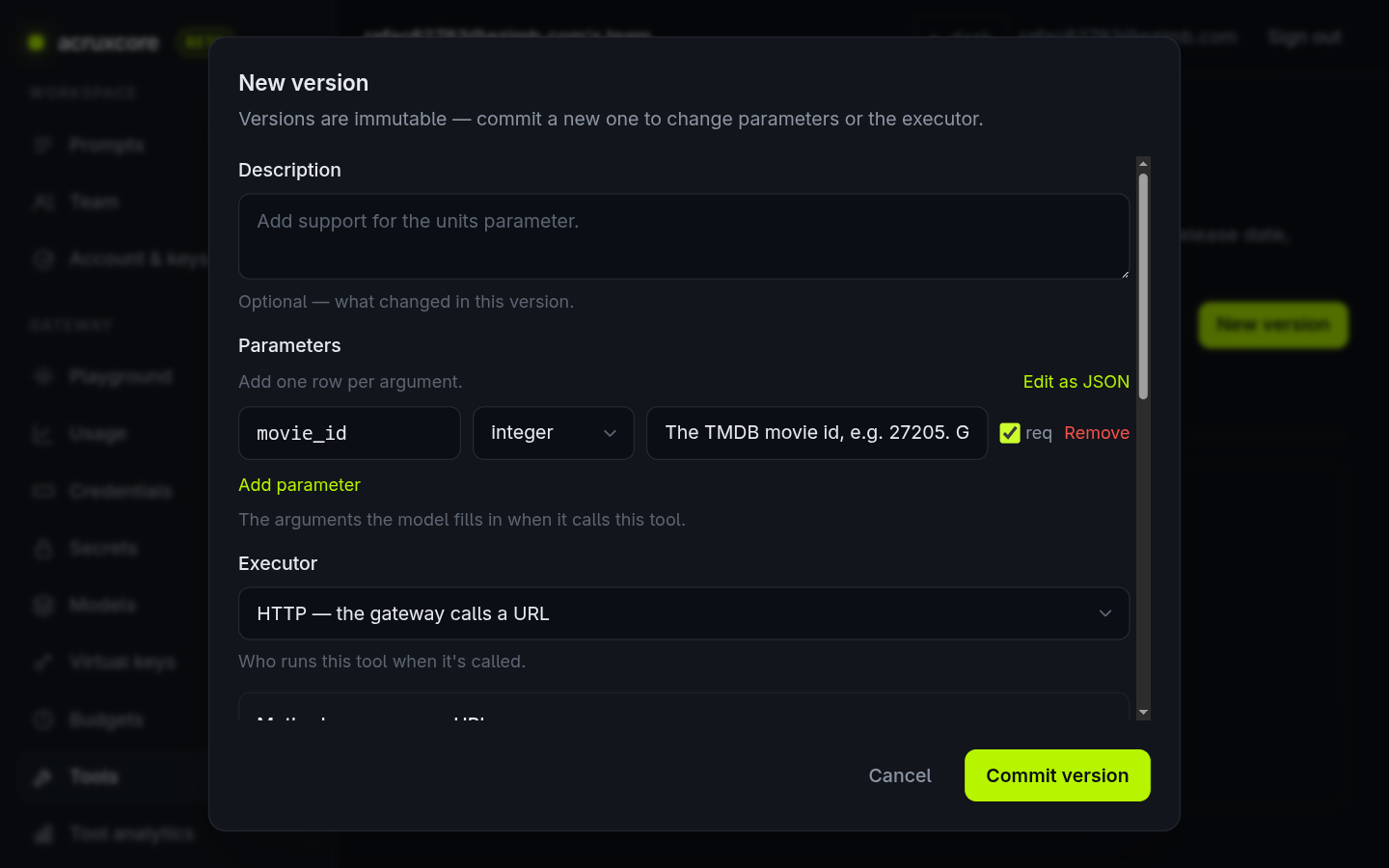
- Parameters: one row —
movie_id, typeinteger, required. - Executor: HTTP,
GET, URLhttps://api.themoviedb.org/3/movie/{{arg.movie_id}}. The{{arg.movie_id}}placeholder drops straight into the URL path. - Query params: just
api_key={{secret.TMDB_KEY}}— the same secret, reused.
Add a response transform that keeps the useful fields:
function transform(input) {
  const m = input.body;
  return {
    title: m.title,
    tagline: m.tagline,
    release_date: m.release_date,
    runtime: m.runtime,
    genres: (m.genres || []).map((g) => g.name),
    rating: m.vote_average,
    budget: m.budget,
    revenue: m.revenue,
    overview: m.overview,
  };
}
Commit it. Both tools now appear on the Tools page.
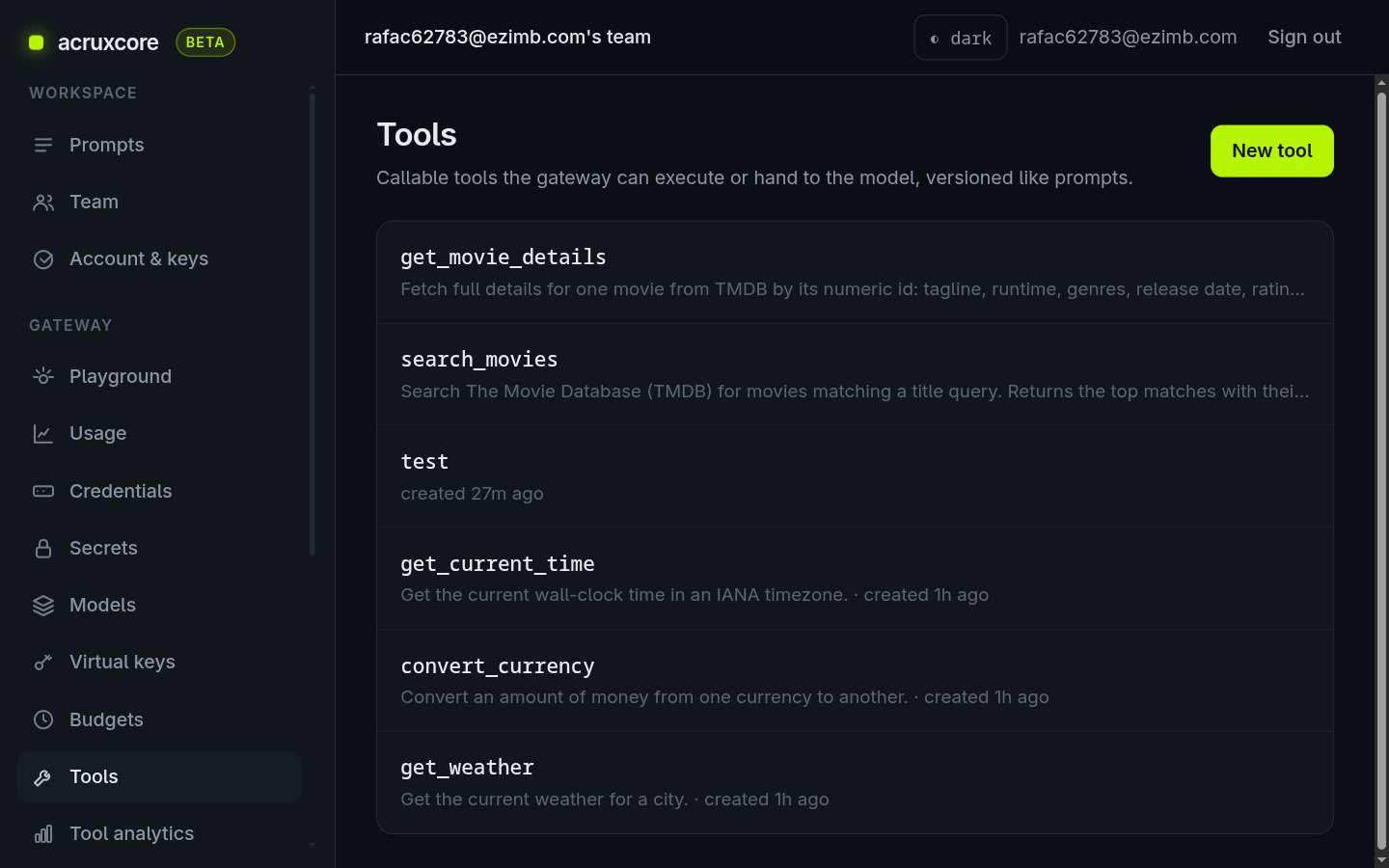
4. Assemble the assistant in the Playground
Open Gateway → Playground. Keep it on the Messages tab and pick a Model at the top (any model your team has registered in the gateway). Then build the conversation:
- A system message that tells the model how to behave: "You are a movie assistant. When a user asks about a movie, first call search_movies to find its id, then call get_movie_details with that id. Answer using only the data the tools return. Never guess."
- A user message with the question, e.g. "Search for the movie Inception, then look up its full details, and tell me its rating, runtime, genres, and a one-line summary."
Under Tools, click Select tools… and tick both search_movies and get_movie_details.
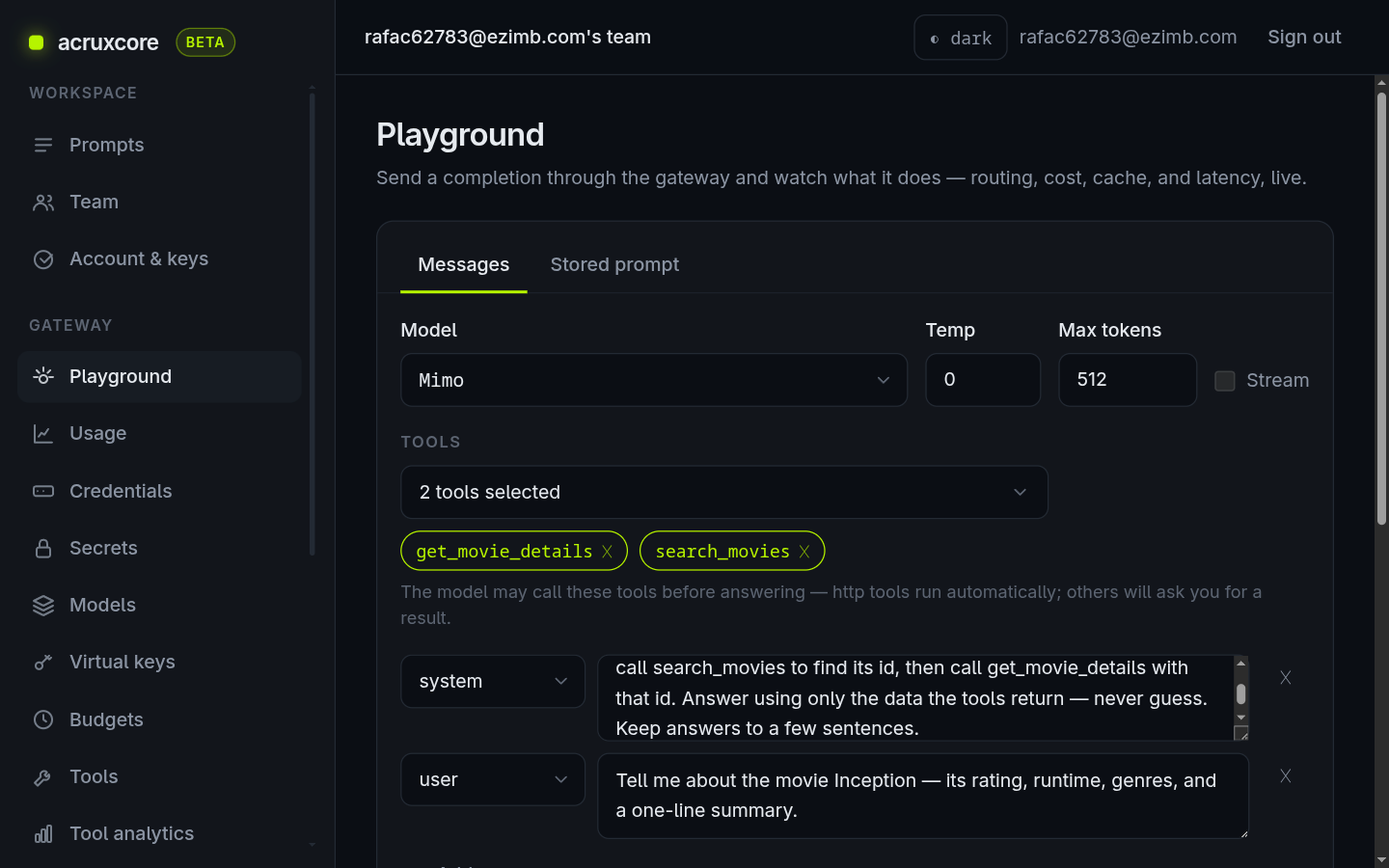
Notice the hint: http tools run automatically. That's the whole point — you attached the tools, and the gateway will run them for you.
5. Run it and watch the tools fire
Click Send completion. The model reads the question, decides to call a tool, and the gateway executes that HTTP call against TMDB and hands the result back — looping until the model has what it needs. Each call shows up as a card marked done, with the exact arguments the model chose and the (trimmed) result:
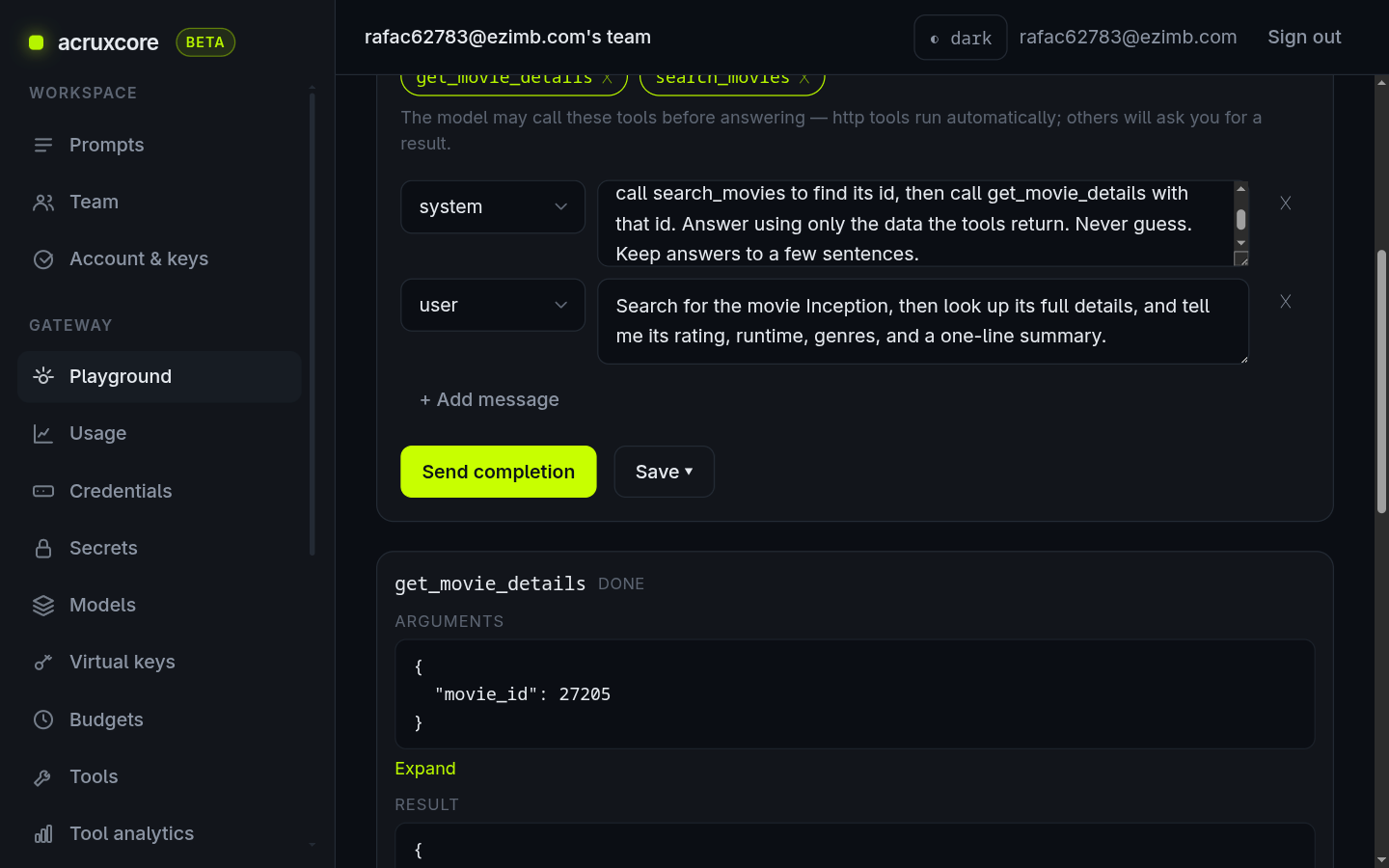
Then the final answer appears, with live gateway telemetry — provider, model, latency, and tokens:
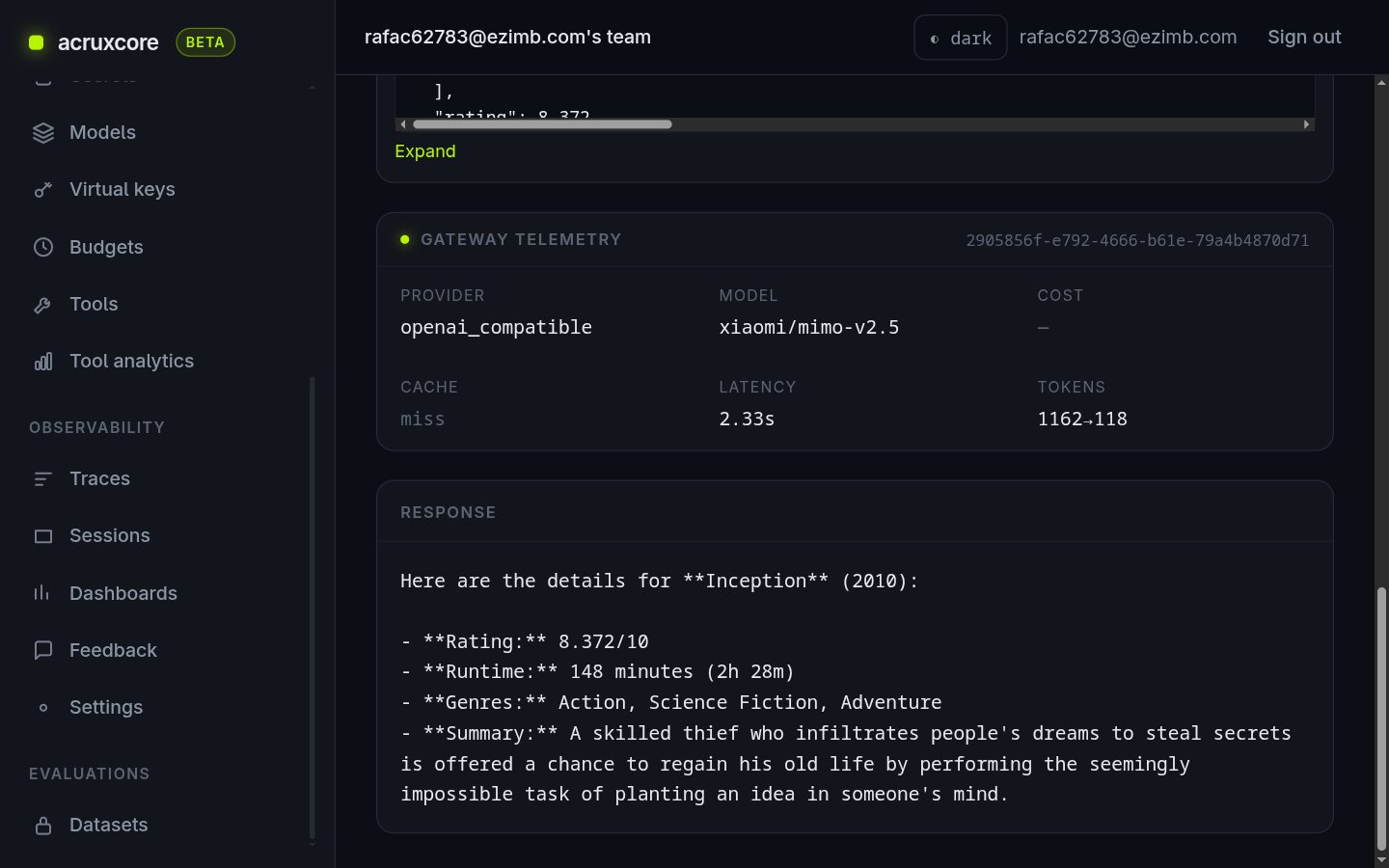
6. Save it as a reusable prompt (with its tools and model)
The Playground is a scratchpad. To turn this into something your app can call by name, save it as a prompt. Click Save ▾ → Save as new prompt…, name it movie-assistant.
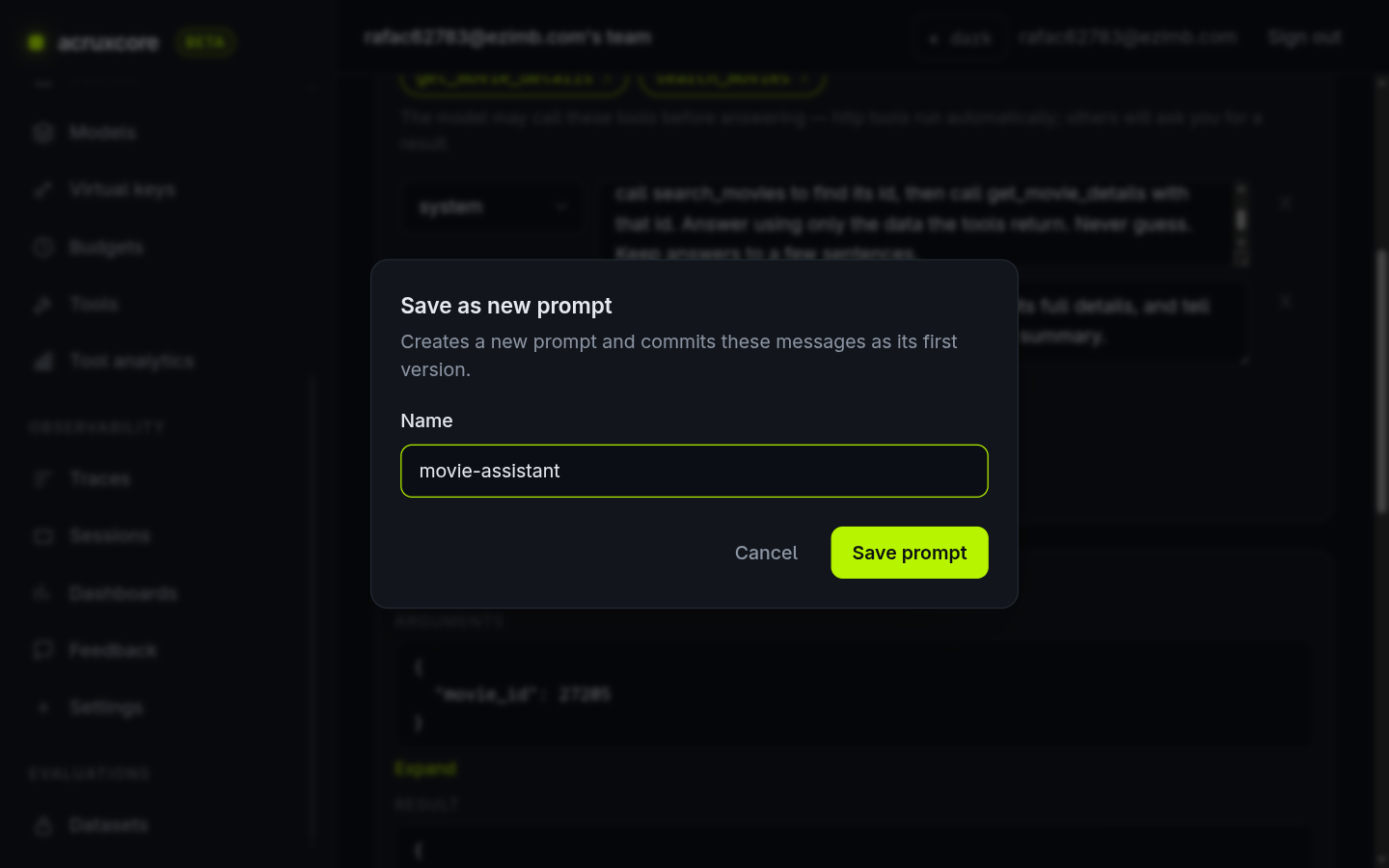
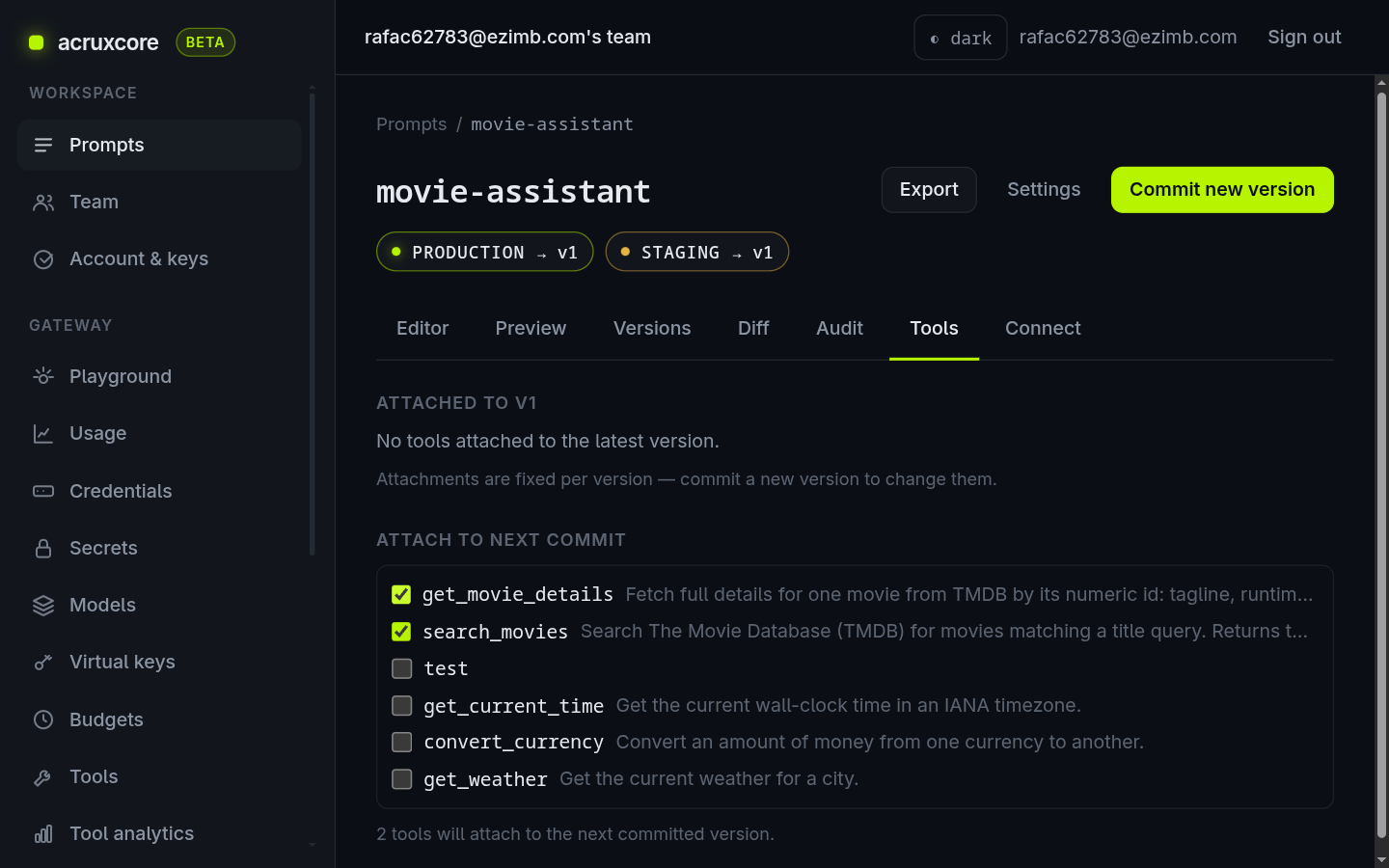
Saving stores the messages. To make the stored prompt carry its tools and a default model too, open the new prompt and commit a version that includes them — this is where "attach the model" happens. On the prompt's Tools tab, tick both tools under Attach to next commit:
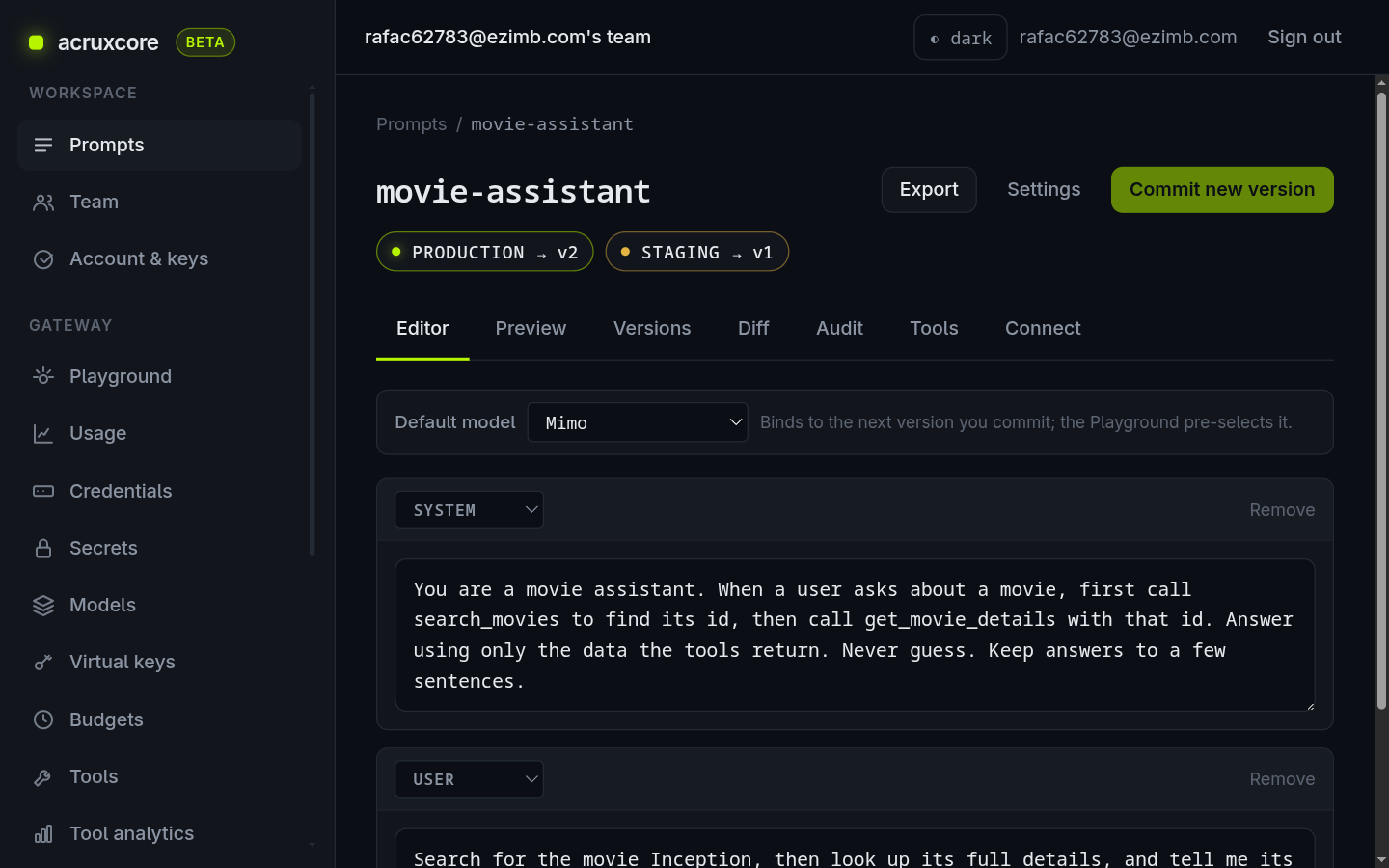
On the Editor tab, set Default model to your model, then click Commit new version. Tools and the model are fixed per version, so committing bakes them in. Promote the new version to production. Now the header shows PRODUCTION → v2 with the model bound and both tools attached:
From here, one SDK renderPrompt('movie-assistant', 'production') call returns the messages and both tool schemas together — see Store prompts and tools via the API for the fetch-and-run side.
7. Inspect the trace
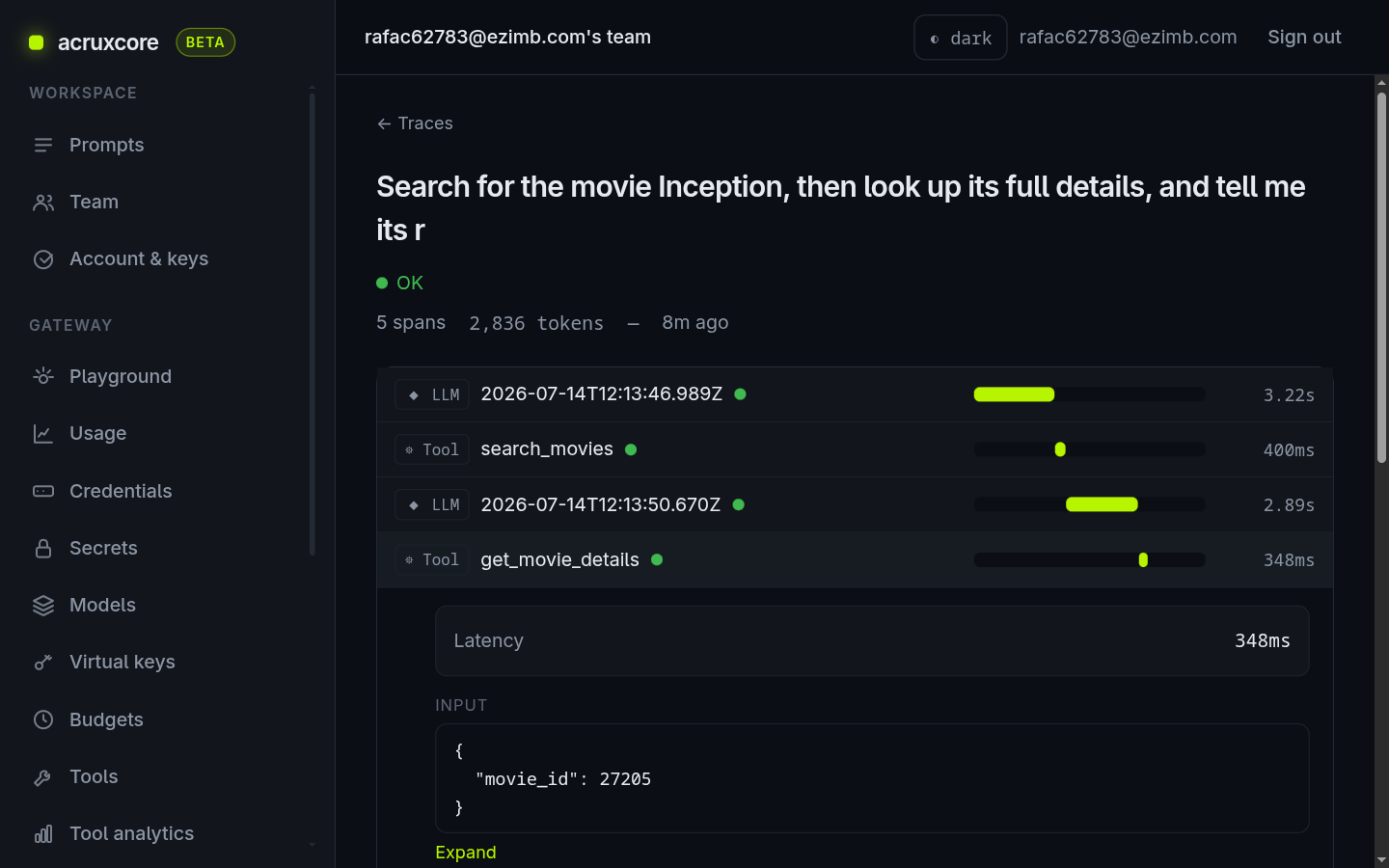
Every run is traced. Open Observability → Traces and click the newest one. The tree shows the full agent loop: the model turn that requested a tool, the tool call itself, the next model turn, and so on until the answer.
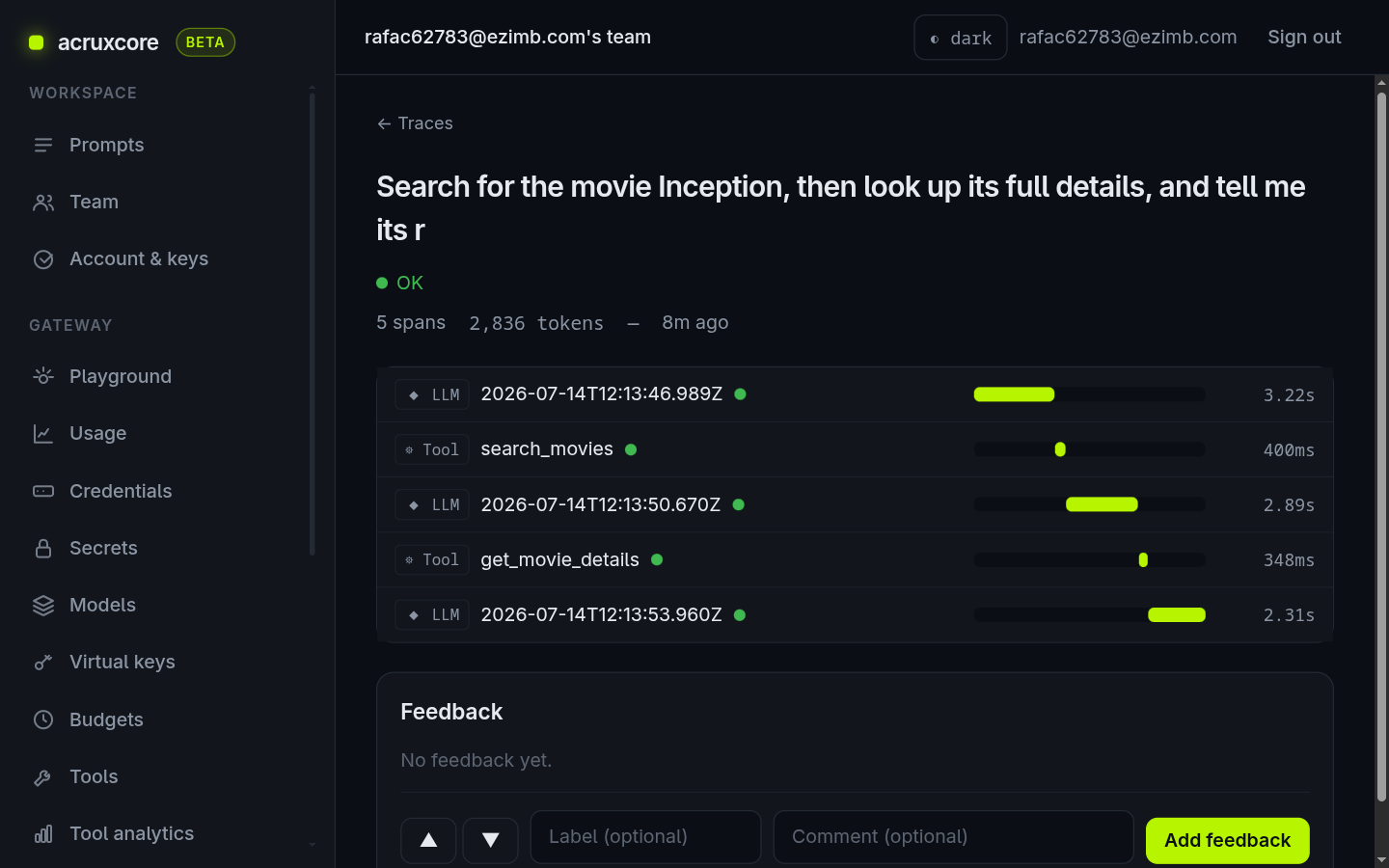
Click a Tool span to see the real call the gateway made — the arguments the model chose as input, and the (transformed) TMDB response as output:
Inputs and outputs are stored only when your team has payload capture on (it's on by default). Turn it off in Observability → Settings if you'd rather not store request bodies.
Doing this over the API
Everything above has a REST equivalent — useful for scripting setup or checking in your tool definitions with your code. Set ACRUXCORE_BASE_URL to https://api.acruxcore.com/api/v1 and use a Bearer API key. All responses below are real.
First, store the secret:
- curl
curl -X POST "$ACRUXCORE_BASE_URL/secrets" \
  -H "Authorization: Bearer $ACRUXCORE_API_KEY" \
  -H "Content-Type: application/json" \
  -d '{ "name": "TMDB_KEY", "value": "<your tmdb key>" }'
{
  "id": "f29da994-62f3-40f1-bf34-72c2a0463bad",
  "name": "TMDB_KEY",
  "lastFour": "f975",
  "createdAt": "2026-07-14T12:23:28.733Z",
  "updatedAt": "2026-07-14T12:23:28.733Z"
}
Create the tool shell, then commit an HTTP version. The executor is the same shape the dashboard form produces — note the {{arg.query}} and {{secret.TMDB_KEY}} placeholders:
- curl
# 1. Create the tool shell
curl -X POST "$ACRUXCORE_BASE_URL/tools" \
  -H "Authorization: Bearer $ACRUXCORE_API_KEY" \
  -H "Content-Type: application/json" \
  -d '{ "name": "search_movies", "description": "Search TMDB for movies matching a title query." }'

# 2. Commit an HTTP version onto it (use the id returned above)
curl -X POST "$ACRUXCORE_BASE_URL/tools/<tool-id>/versions" \
  -H "Authorization: Bearer $ACRUXCORE_API_KEY" \
  -H "Content-Type: application/json" \
  -d '{
    "parametersSchema": {
      "type": "object",
      "properties": { "query": { "type": "string", "description": "The movie title to search for." } },
      "required": ["query"]
    },
    "executor": {
      "type": "http",
      "method": "GET",
      "url": "https://api.themoviedb.org/3/search/movie",
      "query": [
        { "name": "query",   "value": "{{arg.query}}" },
        { "name": "api_key", "value": "{{secret.TMDB_KEY}}" }
      ],
      "responseTransform": "function transform(input) { return (input.body.results || []).slice(0, 3).map((m) => ({ id: m.id, title: m.title, year: (m.release_date || \"\").slice(0, 4), rating: m.vote_average })); }"
    }
  }'
{
  "id": "9bb90912-0b3e-4fec-b8b5-1a28ad29feb1",
  "toolId": "92c78d13-9663-4094-bff3-65bace77fc4d",
  "versionNumber": 1,
  "executor": {
    "type": "http",
    "method": "GET",
    "url": "https://api.themoviedb.org/3/search/movie",
    "query": [
      { "name": "query", "value": "{{arg.query}}" },
      { "name": "api_key", "value": "{{secret.TMDB_KEY}}" }
    ],
    "responseTransform": "function transform(input) { ... }"
  },
  "aliases": [
    { "alias": "production", "versionNumber": 1 },
    { "alias": "staging", "versionNumber": 1 }
  ]
}
You can even run an HTTP tool directly to test it — the gateway resolves the secret, calls TMDB, and applies your transform:
- curl
curl -X POST "$ACRUXCORE_BASE_URL/tools/<tool-id>/execute" \
  -H "Authorization: Bearer $ACRUXCORE_API_KEY" \
  -H "Content-Type: application/json" \
  -d '{ "arguments": { "query": "The Matrix" } }'
{
  "result": [
    { "id": 603, "title": "The Matrix", "year": "1999", "rating": 8.251 },
    { "id": 604, "title": "The Matrix Reloaded", "year": "2003", "rating": 7.082 },
    { "id": 605, "title": "The Matrix Revolutions", "year": "2003", "rating": 6.755 }
  ],
  "status": 200,
  "latencyMs": 514,
  "toolVersionId": "9bb90912-0b3e-4fec-b8b5-1a28ad29feb1"
}
What's next
- Store prompts and tools via the API — the code-first counterpart: define the prompt and tools over REST, then fetch and run them with the SDK.
- Build and attach a tool — more on the tool model, versions, and aliases.
- Using sessions and traces — group related runs and dig into what happened.
- API details: see the Tools and Secrets domains in the API Reference.